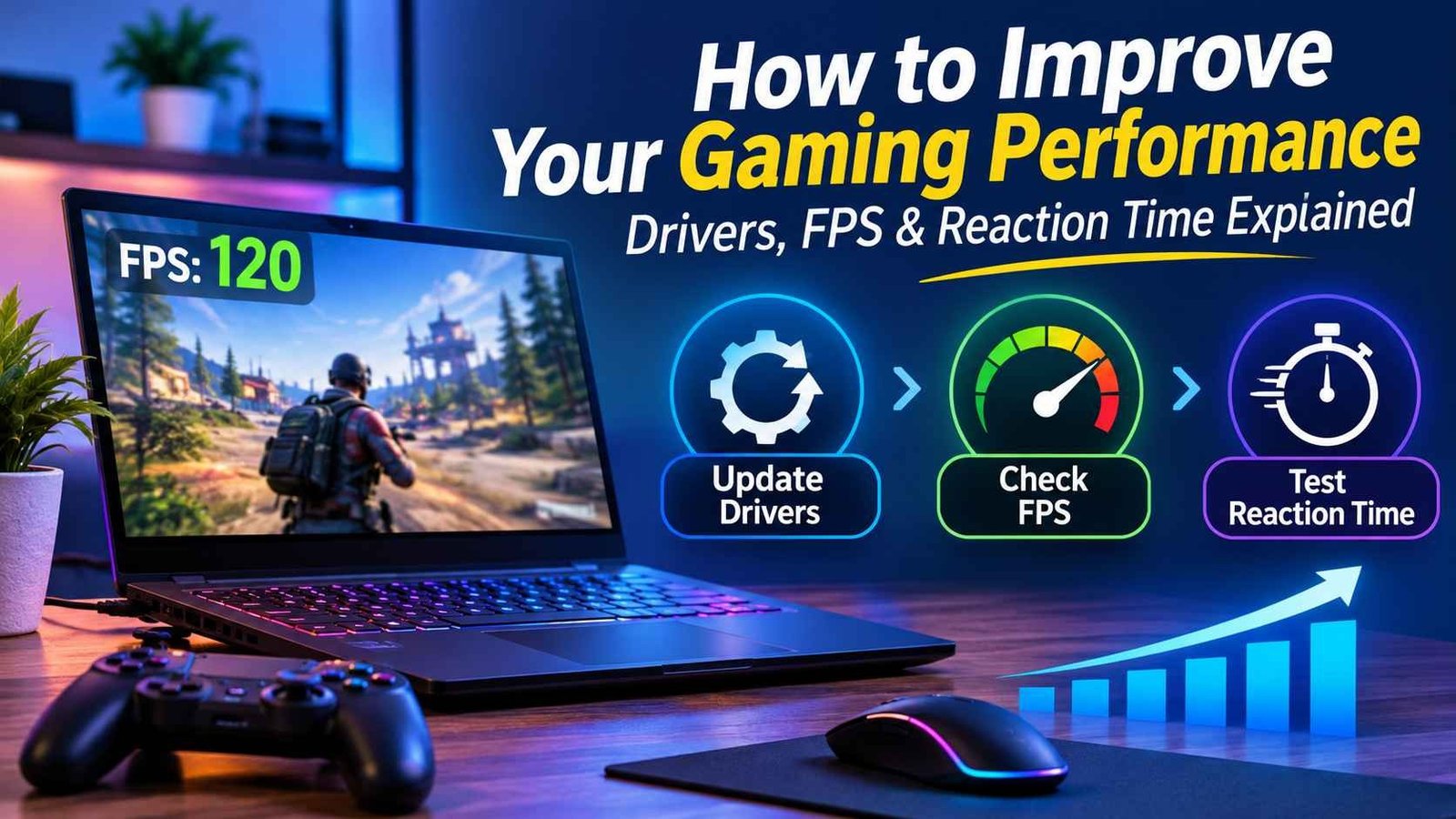
A smooth gaming experience depends on more than owning an expensive graphics card or a powerful processor. Even a well-equipped PC can struggle with inconsistent frame rates, unexpected stuttering, or delayed responses if its software and settings are not properly maintained. Gaming performance is influenced by several factors, including hardware compatibility, driver updates, system resources, display settings, and the player’s own reaction speed.
Understanding these elements can help gamers identify performance problems and make practical improvements without immediately spending money on new hardware. Three areas worth paying attention to are keeping device drivers updated, understanding expected frame rates, and measuring reaction time.
1. Why Updated Drivers Matter for Gaming
Device drivers allow Windows to communicate with hardware components such as graphics cards, sound devices, network adapters, and processors. When these drivers are outdated, missing, or incompatible, certain devices may not work as expected.
For gamers, graphics drivers are particularly important. Graphics card manufacturers regularly release driver updates that can improve compatibility with new games, address known issues, and introduce performance optimizations. An older driver might work perfectly well with an existing game but cause problems when a newer title introduces different graphical requirements.
Updating drivers can help with several common issues:
- Graphics problems: Outdated display drivers can contribute to visual glitches, flickering, or unexpected crashes.
- Game compatibility: Newer drivers may include support for recently released games and graphics features.
- System stability: Appropriate updates can resolve bugs that cause freezing or hardware communication problems.
- Audio issues: Sound driver updates may fix missing audio, distortion, or connectivity problems.
- Network performance: Updated network adapter drivers can address certain connection and stability issues.
However, installing every available driver update without checking compatibility is not always the best approach. It is sensible to use official manufacturer sources, review update information, and create a restore point before making significant changes.
Windows users can check available updates through Windows Update or Device Manager. Another option is using a dedicated utility to identify outdated or missing drivers. Regularly checking and choosing to update drivers can help maintain hardware compatibility, improve stability, and resolve certain gaming-related issues.
For example, Driver Booster from IObit scans a Windows computer for driver-related issues and helps users find available updates. It can be useful for people who prefer managing multiple device drivers through one interface rather than checking every manufacturer’s website individually.
The important thing is to treat driver maintenance as part of regular PC care rather than something to consider only when a game stops working.
2. Understand Your PC’s Gaming Performance Before Upgrading
One common mistake among PC gamers is upgrading hardware without first identifying what is limiting performance. A new graphics card might sound like an obvious solution to low frame rates, but it may not address the actual problem.
For example, a computer with a capable GPU but an older processor could experience CPU-related limitations in certain games. Similarly, insufficient RAM, high background resource usage, or overheating can affect performance.
This is where understanding your expected FPS becomes useful.
FPS stands for frames per second. It measures how many individual frames a computer can produce each second while running a game. Generally, higher FPS creates smoother motion, although the actual experience also depends on frame-time consistency and monitor refresh rate.
Different games and players have different performance requirements. A strategy game may remain enjoyable at a moderate frame rate, while a competitive shooter can benefit from higher and more consistent FPS.
Before purchasing new hardware, consider using an FPS calculator to estimate how your system might perform in different gaming situations.
An FPS calculator can help provide a general performance estimate based on hardware specifications and other relevant factors. It offers a useful starting point when comparing configurations or deciding whether a potential upgrade makes sense.
Keep in mind that estimated FPS is not a guarantee of actual in-game performance. Results can vary depending on resolution, graphics quality, game updates, cooling conditions, and background applications.
3. FPS Is Not the Only Measure of a Smooth Gaming Experience
Seeing a high FPS number is encouraging, but it does not automatically mean a game will feel smooth.
Two computers might produce similar average frame rates while delivering noticeably different experiences. One system may maintain consistent frame delivery, while the other experiences sudden drops and stuttering.
Frame-time consistency is one reason this happens. Frame time measures how long the computer takes to produce an individual frame. Large variations can make gameplay feel uneven, even when the average FPS appears reasonable.
Monitor refresh rate also plays a role. A 60Hz display refreshes its image 60 times per second, while a 144Hz monitor can refresh up to 144 times per second. A higher-refresh-rate display can provide smoother motion when the computer can deliver suitable frame rates.
Gamers should also consider:
- Graphics settings: Reducing demanding settings can help improve performance on less powerful systems.
- Resolution: Higher resolutions require more graphical processing power.
- Temperature: Excessive heat can cause components to reduce their operating speeds.
- Background applications: Unnecessary programs can consume CPU, RAM, and other resources.
- Storage: A slow or nearly full storage drive can affect loading times and overall system responsiveness.
Rather than focusing on one benchmark, look at the complete experience. Stable frame rates, responsive controls, and consistent performance are often more valuable than impressive numbers that fluctuate during gameplay.
4. Why Reaction Time Matters in Competitive Gaming
Hardware performance is only one part of gaming. The person sitting in front of the screen also plays an important role, particularly in competitive games.
Reaction time refers to how quickly someone responds after noticing a stimulus. In gaming, this could mean spotting an opponent, reacting to an unexpected movement, or pressing a button when a visual signal appears.
Fast reaction times can be useful in first-person shooters, racing games, fighting games, and other genres that require quick decisions.
However, reaction time is influenced by several factors, including concentration, familiarity with the game, fatigue, and practice. A player might perform well during one session and respond more slowly during another because of tiredness or reduced attention.
A reaction time test provides a simple way to measure how quickly you respond to a visual signal. These tests usually display a changing visual element and ask users to click or press a key as soon as it appears.
Testing your reaction time occasionally can help you understand your current response speed and track changes across different sessions.
It is important not to treat one result as a complete measure of gaming ability. Reaction time is only one component of performance. Game knowledge, positioning, decision-making, accuracy, and teamwork are equally important in many competitive situations.
5. Simple Ways to Improve Your Gaming Setup
You do not always need expensive equipment to make your gaming experience better. A few practical adjustments can help improve consistency and reduce avoidable performance problems.
Keep your drivers maintained
Check graphics, chipset, audio, and network drivers periodically. Install relevant updates from trusted sources and avoid unnecessary driver changes when everything is working correctly.
Close unnecessary background applications
Web browsers with multiple tabs, large downloads, and resource-heavy applications can compete with games for system resources. Closing programs you do not need can free up memory and processing capacity.
Monitor system temperatures
Overheating can reduce hardware performance. Make sure your computer has adequate airflow, clean its cooling components when necessary, and check that fans are functioning properly.
Adjust graphics settings
If a game struggles to maintain a stable frame rate, experiment with shadows, anti-aliasing, texture quality, and other demanding options. Small adjustments can sometimes make a noticeable difference.
Check your internet connection
Online gaming requires a stable connection. High latency, packet loss, and inconsistent network performance can make multiplayer games feel unresponsive even when local FPS is good.
Practice consistently
For competitive players, regular practice can improve familiarity with controls, aiming, timing, and decision-making. Short, focused sessions are often more productive than playing for hours without a clear objective.
6. Build a Better Understanding of Your PC’s Performance
Improving gaming performance becomes easier when you understand what each measurement tells you. Driver information helps identify potential software and compatibility issues. FPS estimates provide an idea of how hardware may handle different games, while reaction time tests offer insight into personal response speed.
These measurements should be considered together rather than independently.
For instance, if a game runs poorly, checking the graphics driver and reviewing system specifications may be more useful than immediately changing hardware. If the estimated FPS is already suitable but gameplay still feels inconsistent, investigating temperatures, frame-time stability, and network conditions may reveal the problem.
Likewise, a player experiencing difficulty reacting quickly should not automatically blame their computer. Input devices, display latency, practice habits, and personal concentration can all influence the experience.
The goal is to identify the actual source of a problem before making changes.
Final Thoughts
Better gaming performance is not always about buying the latest graphics card or building an expensive PC. Regular maintenance, sensible hardware decisions, and an understanding of performance measurements can make a meaningful difference.
Keeping drivers updated helps maintain hardware compatibility and stability. Checking estimated FPS provides a useful reference when evaluating a gaming setup, while reaction time testing offers another way to understand personal performance.
By paying attention to these areas and making gradual improvements, gamers can build a more reliable setup and enjoy a smoother, more responsive gaming experience without unnecessary upgrades.
