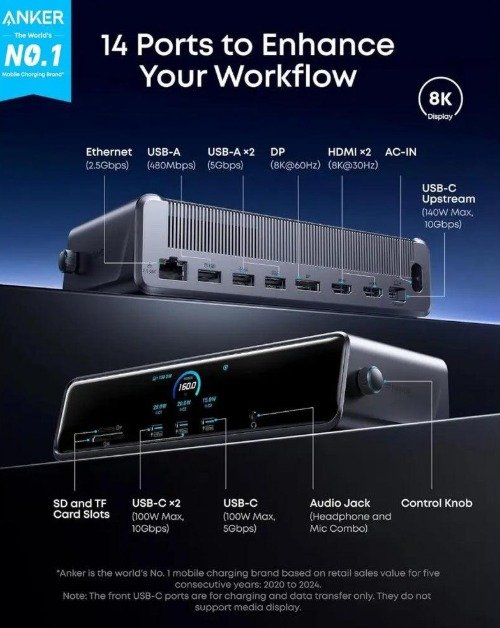
A laptop offers something that traditional desktop computers cannot easily match: the freedom to take an entire working environment from one location to another. However, portability often comes with a compromise. A thin computer may have limited physical connections, a relatively small display, and insufficient ports for the collection of equipment used in a professional workspace. Connecting external monitors, storage drives, networking equipment, and everyday peripherals can quickly become an exercise in managing cables rather than completing meaningful work.
The interesting solution is not necessarily purchasing a larger computer or replacing a laptop with a desktop. It is creating a connection system that allows a portable machine to operate like a fully equipped workstation whenever it reaches a desk. A central Docking Station makes this possible by bringing several connection types into one organised environment. Instead of treating every peripheral as a separate installation, the laptop can access a complete collection of accessories through a single host connection.
This approach has become increasingly valuable as professionals work across different environments. Designers need larger visual workspaces, developers rely on multiple screens, analysts handle extensive data, and content creators regularly transfer large files. Each profession has different technical requirements, but they share one common challenge: making portable computing powerful enough for sustained desktop work.
The Moment a Laptop Outgrows Its Original Design
Laptops are designed around compromises. Manufacturers must balance performance, battery life, cooling, physical dimensions, and manufacturing costs. Increasing the number of built-in ports can make a computer thicker, while adding more internal components can affect weight and thermal design.
For everyday users, a limited selection of connections may be perfectly adequate. The situation changes when the laptop becomes the centre of a professional workstation.
A graphic designer might need a colour-accurate external display, a drawing tablet, external storage, and a card reader. A software developer may prefer two monitors, a mechanical keyboard, a mouse, and a wired network connection. A video editor might need several high-speed storage devices and additional display outputs.
Connecting these accessories individually can create a complicated arrangement. USB adapters occupy available ports, cables become difficult to organise, and some accessories may need to be disconnected whenever another device is introduced.
The laptop has not necessarily become less capable. Its original physical connection design simply was not intended to support every accessory required by an advanced workstation.
A central connectivity solution addresses this limitation without removing the portability that makes laptops useful in the first place.
Why Professional Workspaces Need a Different Connectivity Strategy
The number of connected devices is only part of the problem. The more important consideration is that different devices perform different technical functions.
An external monitor requires video transmission. An SSD needs a suitable data connection. Ethernet provides network access, while a keyboard and mouse require comparatively modest data bandwidth. A laptop also needs sufficient electrical power to operate and recharge.
A workstation therefore combines several types of communication through one physical environment.
Managing these connections individually can become inefficient, especially when a professional changes locations frequently. A central dock provides a structured interface between the computer and its peripherals, reducing the need to repeatedly rebuild the same arrangement.
It also makes future expansion easier. A user can add another compatible accessory without necessarily redesigning the entire desk.
The best connectivity strategy is not simply to maximise the number of available ports. It is to provide the right combination of interfaces for the actual workload, while maintaining sufficient bandwidth and power for simultaneous use.
What Happens Behind a Single-Cable Connection
The convenience of connecting one cable can make the underlying technology seem simple. In reality, several technical processes may operate through the same connection.
Modern USB-C and Thunderbolt interfaces can support combinations of data transfer, video output, and power delivery, depending on the specific implementation. This allows a compatible laptop to communicate with multiple external devices while receiving electrical power through the same host connection.
However, USB-C is the physical connector shape, not a guarantee of identical capabilities. A port may support basic USB data without supporting video output or advanced charging. Another port may support Thunderbolt, providing substantially greater bandwidth and additional functionality.
This distinction matters because two products can have identical-looking connectors but offer very different performance.
Before building a workstation, users should verify the capabilities of their laptop’s ports, the dock’s host connection, and the included cable. The connection must support the features required by the external equipment.
When Multiple Displays Change the Way People Think
A larger screen does more than make content easier to see. It can change how information is organised and how people approach complex tasks.
A researcher might keep source material on one display while writing on another. A financial analyst could monitor live information alongside spreadsheets. A designer may use one screen for the main creative application and another for references, communication, and project management.
This arrangement reduces the need to repeatedly switch between windows. Instead of constantly hiding and reopening applications, users can maintain a more stable visual workspace.
However, multi-display support involves more than counting HDMI or DisplayPort connectors. The laptop’s graphics capabilities, operating system, dock technology, resolution, and refresh rate all influence the final configuration.
A dock advertised as supporting two external displays may have different limitations depending on the connected computer. Some systems support multiple monitors natively through Thunderbolt or compatible USB-C video output, while others rely on DisplayLink technology and additional software.
Resolution and refresh rate also matter. A configuration that supports two displays at 4K resolution may not offer the same refresh rate or colour performance under every connection arrangement.
For professional environments, these details should be checked before purchase rather than discovered after the entire workstation has been installed.
Why Mac Users Need to Look Beyond the Number of Ports
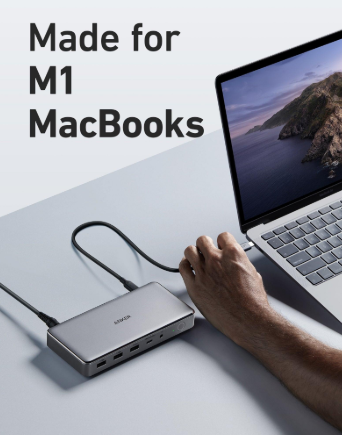
Apple laptops are popular in creative industries, development environments, education, and business because of their combination of portability and computing performance. Yet the experience of expanding a MacBook workstation depends on several model-specific capabilities.
Different MacBook generations support different external display configurations. Processor architecture, available Thunderbolt connections, supported resolutions, and macOS compatibility can all influence which docking products work as expected.
Choosing a MacBook docking station therefore requires more than checking whether a product has USB-C connectors. Users should examine the specific MacBook model, supported display arrangements, power requirements, and compatibility with the dock’s connection technology.
This is particularly important for professionals who plan to operate multiple external monitors. A dock may have several video outputs, but the laptop itself still determines which display combinations are supported.
For example, a workstation designed around a MacBook Pro with advanced multi-display support may need a different configuration from a MacBook Air used primarily for office applications. Checking Apple’s specifications alongside the dock manufacturer’s compatibility information helps prevent unexpected limitations.
The Difference Between More Ports and More Bandwidth
A common mistake when comparing docking products is assuming that a higher number of ports automatically means better performance.
Ports provide physical access to connected devices, but bandwidth determines how much information can move through the connection. These are related, but they are not the same thing.
Imagine transferring large video files to an external SSD while simultaneously using two high-resolution monitors and maintaining a wired network connection. Each activity consumes part of the available system capacity.
A dock with many connectors may still have a limited upstream connection. If several demanding devices operate together, they may share the available bandwidth according to the dock’s internal design.
Thunderbolt is particularly relevant for demanding workstations because it combines high-speed data, display support, and power delivery through a compatible connection. Thunderbolt 4 and Thunderbolt 5 provide different capabilities, so users should compare the actual specifications rather than assuming every Thunderbolt product offers identical performance.
For a professional working mainly with documents and ordinary office applications, a simpler dock may be perfectly sufficient. Video editors, photographers, engineers, and developers may benefit from more advanced connectivity.
The right choice depends on the amount of information moving through the workstation during normal operation.
How External Storage Changes the Requirements of a Dock
Storage devices are often overlooked when people design a workstation. Yet for professionals working with large files, storage connectivity can have a direct effect on productivity.
A photographer may transfer hundreds of high-resolution images from memory cards. A video editor might work with large footage files stored on an external SSD. A developer may maintain several project backups or virtual environments on external drives.
In these situations, connection speed becomes more important than simply having an available USB port.
USB standards support different maximum data rates, and actual transfer speeds depend on the drive, cable, dock, and host computer. A high-performance SSD connected through a slower interface will not necessarily operate at its full potential.
Memory card readers also deserve attention. Photographers who regularly use SD cards may benefit from a dock with suitable card-reader specifications, particularly when transferring large image collections.
The best workstation design places frequently used storage devices on connections that can support their performance requirements without creating unnecessary bottlenecks.
Power Delivery and the Importance of Matching the Laptop
A workstation needs more than data connectivity. It also needs a dependable power arrangement.
Many modern docks support USB Power Delivery, allowing a compatible laptop to receive electrical power through its host connection. This reduces the need for a separate laptop charging cable and helps create a cleaner desk.
However, the power output available to the laptop varies between products. A dock’s total power rating may include energy allocated to several ports, so it should not automatically be interpreted as the amount delivered to the connected computer.
A high-performance laptop used for demanding applications may require more power than a basic ultrabook. If the dock supplies less than the computer needs during intensive workloads, the battery may charge slowly or continue to lose power while the system is operating.
Users should compare the laptop’s recommended charging requirements with the dock’s stated host power delivery. They should also check whether the advertised output changes when other charging ports are occupied.
This small step can prevent an otherwise capable workstation from becoming limited by an unsuitable power arrangement.
Creating a Desk That Supports Different Working Styles
A productive workstation is not necessarily the one with the most expensive equipment. Its value comes from how well each component supports the user’s actual working habits.
For a writer, a comfortable monitor, keyboard, and reliable network connection may be enough. A designer may prioritise high-resolution displays and colour accuracy. A developer may prefer additional screen space, fast storage, and stable Ethernet connectivity.
The physical arrangement also affects usability. Frequently accessed ports should remain easy to reach, while cables should be routed in a way that prevents accidental disconnections. A dock placed behind a monitor can keep the desk visually clean, but only if its connections remain accessible when needed.
Heat management deserves consideration as well. High-performance docking devices can generate heat during intensive use, particularly when several peripherals are connected. Keeping the device in a reasonably ventilated location helps maintain stable operation.
A well-designed workstation should feel like a natural extension of the laptop rather than a separate collection of accessories that requires constant attention.
What to Consider Before Selecting a Connectivity Solution
A good purchasing decision starts with the computer and the equipment already in use. The following considerations help identify the right configuration:
- Laptop compatibility: Confirm the available USB-C or Thunderbolt capabilities and operating system requirements.
- Display requirements: Check the number of external screens, supported resolutions, refresh rates, and display technology.
- Data performance: Compare USB and Thunderbolt specifications for external storage and other demanding peripherals.
- Power delivery: Make sure the dock can provide suitable charging power to the laptop.
- Network connectivity: Consider whether a wired Ethernet connection is important for stable office or production work.
- Card readers: Photographers and content creators may benefit from integrated SD or microSD support.
- Physical design: Evaluate desk space, cable length, port accessibility, and ventilation.
- Future expansion: Allow some room for additional monitors or accessories that may become part of the workstation later.
It is also worth checking the manufacturer’s documentation for model-specific restrictions. Compatibility should be established using the exact computer model rather than relying on a general statement that a dock works with USB-C laptops.
The Next Stage of Laptop-Based Workstations
The distinction between portable computers and desktop workstations continues to become less rigid. Modern laptops are increasingly capable of handling demanding professional workloads, while improved connectivity makes it easier to expand their functionality outside the computer itself.
This creates an interesting shift in workstation design. Instead of buying a separate computer for every environment, professionals can use one capable laptop as their central machine and adapt its surrounding equipment according to the task.
A home desk can offer multiple displays and external storage, while a temporary workspace can remain simple and lightweight. The computer stays the same, but its available working environment changes.
Future connectivity developments will continue to focus on higher bandwidth, more efficient power delivery, improved display support, and simpler compatibility between devices. These improvements can make workstation expansion more convenient without requiring users to manage an increasingly complicated collection of adapters.
The most successful setups will not necessarily be the largest. They will be the ones that make powerful computing accessible without sacrificing the freedom of portable hardware.
Conclusion
A laptop becomes a much more versatile professional tool when its connectivity is designed around the way people actually work. External displays, storage, networking equipment, and everyday peripherals can create a powerful workstation, but managing them individually can introduce unnecessary complexity.
A central docking solution brings these connections into one organised environment, helping users maintain a consistent workspace while keeping their computer portable. The important considerations are compatibility, bandwidth, display support, and suitable power delivery.
Rather than choosing equipment simply because it offers the largest number of ports, professionals should build their setup around their real workloads. When every connection serves a clear purpose, the result is a cleaner desk, a more adaptable computer, and a working environment that can evolve as professional needs change.
Frequently Asked Questions
What is the main purpose of a docking station?
A docking station expands a laptop’s connectivity by providing additional ports for monitors, storage devices, networking equipment, and other peripherals. Many models also support laptop charging through a single host connection.
Can a MacBook use a docking station with multiple monitors?
Yes, provided the docking device and MacBook model support the intended display configuration. The maximum number of displays, resolution, and refresh rate depend on the computer’s hardware and the dock’s technology.
Is Thunderbolt better than standard USB-C for docking?
Thunderbolt generally offers higher bandwidth and broader support for demanding combinations of data, display, and power connections. However, standard USB-C docks can be entirely suitable for simpler workstations.
Will a docking station charge my laptop while connected to external displays?
Many docking stations support USB Power Delivery, allowing them to supply power while handling other connections. The available charging output must be sufficient for the laptop’s requirements.
How do I choose between a USB-C hub and a full docking station?
A compact hub is usually suitable for occasional port expansion and portable use. A full docking station is more appropriate for a permanent workstation with several displays, external storage, networking equipment, and multiple peripherals.
